

A real-world comparison of Showit vs Squarespace for photographers, wedding professionals, creatives, and service-based businesses. Everything you need to know about design, SEO, blogging, ecommerce, and long-term growth.
Choosing a website builder shouldn’t feel like a personality test.
And yet… somehow it does.
If you’re a photographer, creative entrepreneur, or service-based business owner, chances are you’ve landed on the same two options at some point: Showit and Squarespace. Both are popular. Both promise beautiful websites. Both claim to be “easy.” And both come with very strong opinions on the internet.
So which one is actually better?
Short answer: it depends — but probably not in the way most comparison posts make it sound.
This isn’t another generic feature list or a “just pick whatever feels right” situation. The differences between Showit vs Squarespace become really clear once you look at them through a real-world, day-to-day usage lens — especially if your website is meant to do more than just exist. Like showcasing your work beautifully, building trust fast, and turning “just browsing” into actual inquiries.
And that’s exactly what we’ll do here.
A quick hello (so you know where this is coming from)
Hi, I’m Kim — brand and web designer and the founder of Studio Wildlight.
I design websites for photographers and creative businesses, and I’ve worked with a lot of website builders over the years. Not just theoretically, but in real client projects, real launches, real “why is this not doing what I want” moments.
I’ve built and designed websites on Squarespace, worked extensively with Showit, and used both platforms for client work and my own businesses. So this comparison isn’t based on specs alone, it’s based on what actually happens once you start using these tools in real life.
No platform bashing, no hype. Just a real-world breakdown from someone who actually uses these tools, to help you decide which website builder makes sense for you in 2026.
Let’s get into it.
Showit vs Squarespace: The Short Version
If you’re the kind of person who likes a quick overview before diving deeper (same), here’s the big-picture comparison:
Pricing and features are based on typical plans used by photographers and creatives as of 2026. Exact costs may vary depending on billing cycles and add-ons.
If you already have a gut feeling after reading this — good.
But before you decide anything, let’s slow down and actually look at what Showit and Squarespace are, how they work, and who they’re really built for.
Let’s start with Showit.
What Is Showit and Who Is It For?
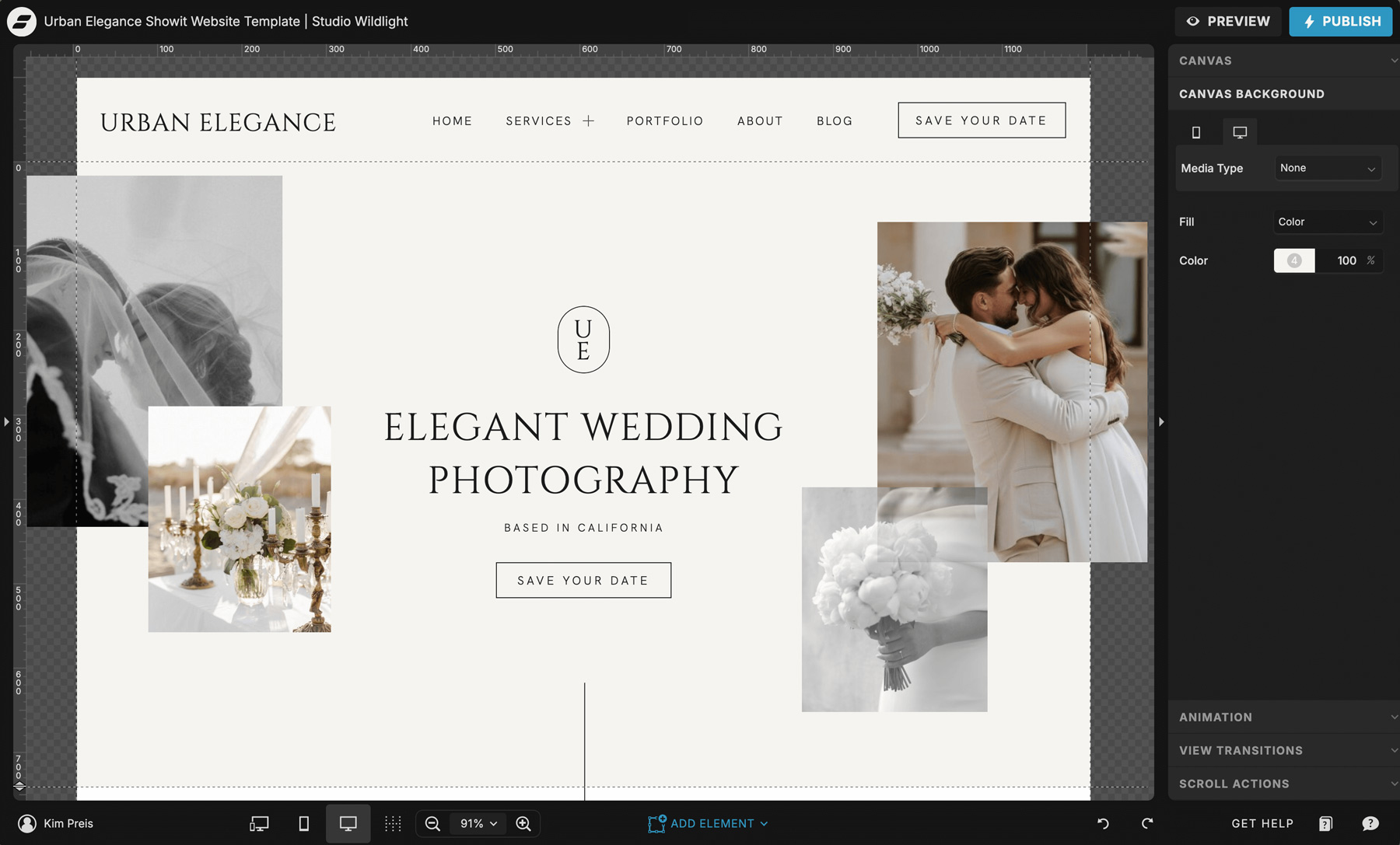
Showit is a visual, drag-and-drop website builder that was built with photographers and creatives in mind. Not in a vague “creative-friendly” way, but very literally.
If you’ve ever tried to “just quickly adjust” a layout inside a rigid template and ended up whisper-swearing at your screen… Showit is the opposite of that.
You design freely and place elements exactly where you want them. Want an editorial layout with overlapping images? Done. Want big typography that doesn’t get shoved back into a little box? Done. Want your site to feel custom, even if you started from a template? That’s literally the point.
This level of creative control is why Showit became so popular with photographers, wedding professionals, designers, and other visual service providers. It’s made for businesses where branding, aesthetics, and storytelling are not “nice to have”, but central to how clients decide to book.
Showit tends to be a good fit if you:
- run a creative or service-based business where visuals and branding matter
- want a website that’s more than a simple digital business card
- want more control over layout and mobile design
- care about the details but don’t want to touch code
- plan to refine and expand your website over time instead of keeping it static
That’s why Showit has become such a popular choice for photographers, wedding professionals, and other visual creatives who want their website to reflect the quality of their work, without having to rebuild everything every time their business evolves.
By the way – if you’re reading this because you’re moving away from FloThemes, you might also find my breakdown of the best FloThemes alternatives for photographers helpful.
More than just a pretty editor
Even though Showit is very good at making things look good, that’s not where it stops.
It also gives you everything you need to build a strategic, high-converting website that can actually grow with your business. The editor itself is incredibly intuitive. Honestly, if you can drag elements around in Canva, you can customize a Showit template without breaking a sweat.
Where Showit really becomes powerful is in how it handles content and structure behind the scenes.
One of its biggest advantages is that it’s natively integrated with WordPress. Yes, that WordPress — the world’s most widely used blogging platform and still one of the strongest tools for SEO.
Your website pages are built and designed visually inside Showit, while your blog runs on WordPress in the background, fully connected. The best part is that you get all the benefits of WordPress without being forced to live inside the WordPress backend if you don’t want to.
This setup allows you to:
- blog for SEO using WordPress
- use plugins and extensions when you need them
- even run a full online shop through WordPress and WooCommerce
And at the same time:
- design everything visually in Showit
- avoid code entirely
- keep full control over how your site looks and evolves
The result is a website that doesn’t box you in. It supports long-term growth, adapts as your business changes, and gives you room to scale over time.
Without needing to be a developer. Or a tech wizard. Or someone who enjoys fighting their website builder for fun.
What Is Squarespace and Who Is It For?
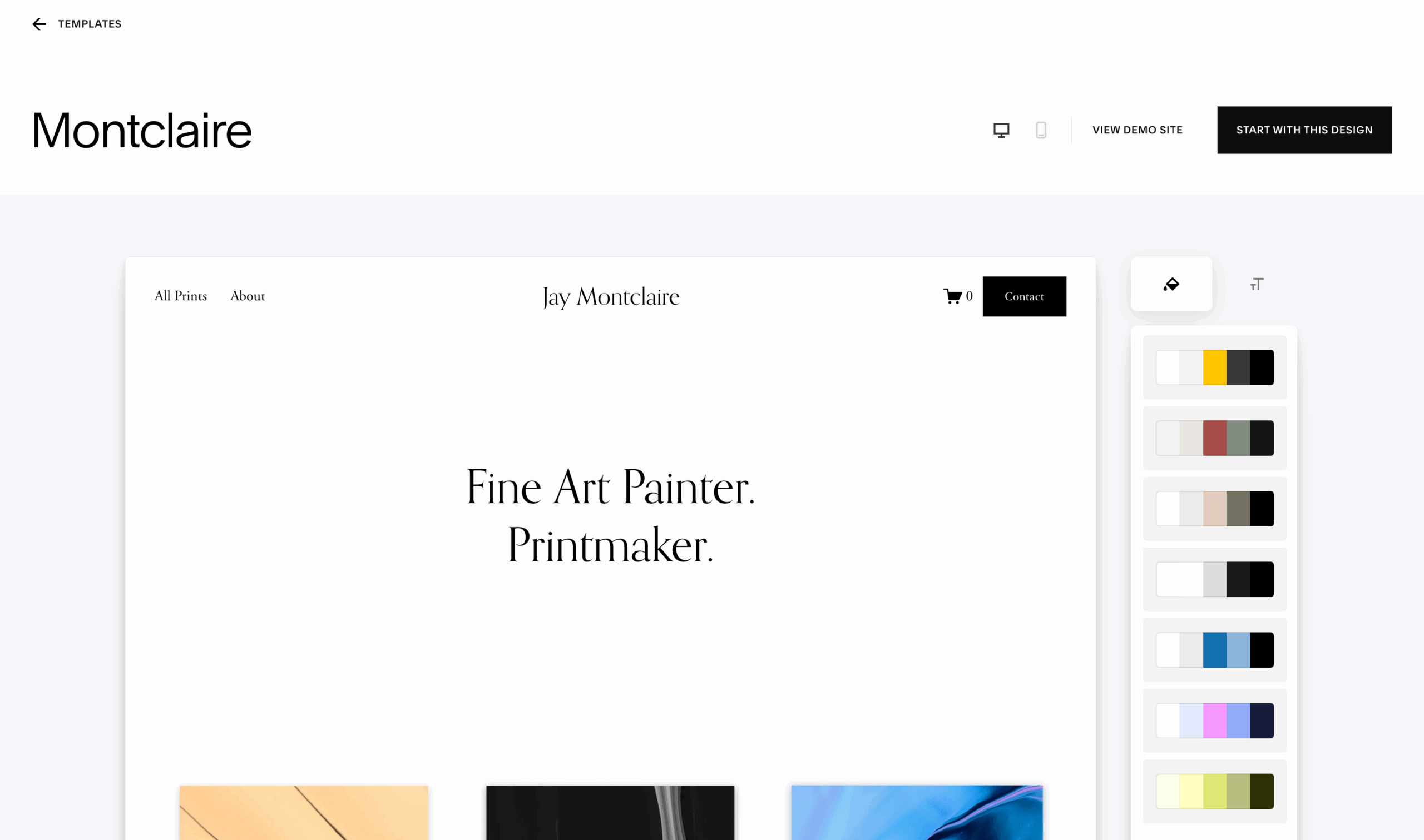
Squarespace is an all-in-one website builder that combines design, hosting, blogging, and basic ecommerce in one platform. It’s known for its clean templates, polished look, and relatively low barrier to entry.
For a lot of people, Squarespace is the first website builder they ever use. And honestly, that makes sense.
You choose a template, swap out the text and images, and you can have a website up fairly quickly without thinking too much about structure, hosting, or technical setup. Everything lives in one place, which feels convenient, especially at the beginning.
Squarespace is built around structure. You work inside predefined sections, grids, and layout rules. That’s intentional. The platform is designed to keep things consistent and prevent you from “breaking” your site visually, even if you don’t have a design background.
Squarespace tends to be a good fit if you are:
- just starting out and want a website online quickly
- running a small service-based or product-based business with simple needs
- happy working within a set layout system
- not planning to customize your website heavily (at least for now)
If you like clear guardrails and prefer a platform that makes most decisions for you, Squarespace can feel reassuring rather than restrictive.
Design philosophy: polished, but controlled
Squarespace templates are well-designed. There’s no denying that. They’re clean, modern, and generally look professional straight out of the box.
The trade-off is flexibility.
You can customize fonts, colors, spacing, and content, but you’re always working within a system that makes a lot of decisions for you. Layout behavior, typography scaling, and spacing are largely controlled by the template and global styles.
As long as your needs are simple, that structure can feel helpful. But as your brand grows and your design needs become more specific, those limitations tend to show up quickly. The moment you want something even slightly custom or out of the box, you often end up needing custom code to work around the builder instead of with it.
Now that we’ve looked at how both platforms work individually, let’s put them side by side and talk about what actually matters in day-to-day use.
Showit vs Squarespace: Feature-by-Feature Comparison
Design & Layout Flexibility
This is the biggest difference between Showit and Squarespace, and for a lot of people, it’s the deciding factor.
Showit
Showit is completely free-form. There’s no grid you have to obey and no layout system telling you where things are “allowed” to live. You place elements exactly where you want them and build layouts visually.
That means you can:
- layer images and text freely
- create editorial-style layouts
- work with negative space intentionally
- design pages that feel custom, even when you start from a template
You’re not adapting your brand to a structure. The structure adapts to your brand.
This level of flexibility is especially noticeable once you move past very basic layouts. Landing pages, sales pages, long-form pages, or anything that needs a bit of personality is where Showit really shines.
Squarespace
Squarespace works on a section- and grid-based system. You build pages using predefined sections and content blocks, and everything snaps into place according to the template’s rules.
This has upsides:
- layouts stay tidy
- it’s harder to “break” things visually
- consistency is baked in
But it also means:
- element placement is limited
- layouts tend to look similar across different sites
- custom ideas often hit a wall quickly
You can customize fonts, colors, spacing, and content, but you’re always working within the boundaries of the template and global styles. If you want something slightly out of the ordinary, you usually have to compromise or reach for custom CSS.
The real difference in practice
If you want a website that feels unique, expressive, and very brand-led, Showit gives you far more room to work.
If you prefer a structured system that makes design decisions for you, Squarespace can feel easier and more predictable.
Neither approach is wrong. They’re just built for different priorities.
Next, let’s talk about something that matters just as much as desktop design and often gets overlooked until it’s too late: mobile design.
Mobile (Responsive) Design
Let’s talk about mobile. Because chances are very high that the first time someone sees your website, it’s on their phone. Not on a 27-inch iMac. On a phone. (Because yes, couples really do decide if you feel “high-end” in about 6 seconds while waiting for their oat milk latte.)
So how Showit and Squarespace handle mobile design actually matters. A lot.
Showit
Showit treats mobile as its own design canvas.
That means your desktop and mobile designs are two completely separate layouts. You’re not relying on the platform to magically “figure it out” for you. You decide exactly what happens on mobile. It takes a bit more intention, but the upside is huge: your site doesn’t just work on mobile, it actually looks good there.
You can mirror almost every setting between desktop and mobile if you want (but you don’t have to). You might only tweak a few font sizes and spacing, or you might design a completely different mobile layout. Both are totally fine.
Squarespace
Squarespace also offers mobile editing, but it’s more limited and works differently.
You can rearrange and resize blocks for mobile, adjust spacing, and tweak layout behavior in some sections. However, a lot of content styling is global. That means changes to things like:
- text size
- alignment
- color
- certain typography settings
will usually apply to desktop as well.
This is where things can get frustrating. Font sizes in particular can behave oddly across different screen widths, and you don’t have much control unless you start using custom code. Which is where the fun begins, because suddenly you’re trying to make one set of design decisions work perfectly across every screen size.
So yes, Squarespace lets you improve the mobile layout. But you don’t get the same “mobile is its own world” level of control that Showit gives you.
The real difference in practice
- With Showit, you design mobile intentionally and independently.
- With Squarespace, you can adjust the mobile layout, but deeper styling changes often affect desktop too.
If you’re picky about mobile (and if you’re a photographer or visual brand, you probably are), Showit gives you more control and far fewer compromises.
Next up: Blogging & SEO, aka the part everyone avoids until they want Google to actually send them inquiries.
SEO & On-Page Structure (the unsexy stuff that actually matters)
Okay, let’s talk SEO. Not in a “become an SEO expert” way, but in a “does this platform actually let you build pages that make sense for humans and search engines” way.
First things first: both Showit and Squarespace give you the tools you need to build a solid SEO foundation.
On both platforms, you can:
- set page titles and meta descriptions
- use proper heading tags (H1, H2, H3, etc.)
- add alt text to images
- control URLs and basic page settings
So this is not a “one platform is SEO-friendly and the other isn’t” situation. The real difference is how much control you have once you start caring about structure, copy, and design working together. Which, let’s be honest, usually happens after your business has grown a bit.
Showit
Showit gives you a lot of freedom when it comes to structuring your pages in a way that makes sense for both humans and search engines.
You’re not forced into a system where design decisions dictate how your content has to be structured. You can keep a clean, logical hierarchy and still design pages that feel intentional, branded, and well written.
In practice, that means:
- you don’t have to write copy around layout limitations
- your page structure can stay clear, even on long or complex pages
- SEO considerations don’t clash with design choices
This is especially noticeable on pages like your homepage hero, sales pages or long-form service pages. Basically anywhere where good copy, good design, and clarity actually matter.
One more thing worth mentioning here: Showit has a native WordPress integration for blogging. Your regular pages live in Showit, but when it comes to content and long-term SEO through blogging, that connection becomes a big advantage. We’ll look at that properly in the next section.
Squarespace
Squarespace also supports basic on-page SEO, but the system is more opinionated.
A lot of structural and styling decisions are tightly connected to global design settings. That means changes meant to improve clarity or hierarchy can have visual consequences across your entire site.
You can build well-structured pages in Squarespace, but you have less flexibility in how structure and design interact. Over time, this can lead to compromises where:
- content is simplified to fit the design
- design choices are limited to preserve structure
- or you start working around the builder instead of with it
This isn’t a dealbreaker for simple websites. It just becomes more noticeable once pages get longer, more strategic, or more conversion-focused.
The real difference in practice
- With Showit, you have more freedom to let structure, copy, and design work together.
- With Squarespace, the system works best when you stay within its predefined rules.
If you want to go deeper into the basics that actually make a photography website work (beyond the builder choice), I’ve put together a list of practical photography website tips that cover structure, clarity, and conversion.
Now let’s talk about blogging, where the differences get much more interesting.
Blogging (and why this actually matters)
Even if you’re not planning to become a full-time blogger, blogging is one of those things that quietly compounds over time. One good post won’t change your life. And ten random posts probably won’t either. But a handful of well-written posts that actually rank for relevant keywords?
Think: “California elopement photographer” or “Tuscany wedding photographer” type searches.
Those posts can quietly bring inquiries for years. That’s when Google starts paying attention.
Showit + WordPress
With Showit, your blog runs on WordPress, while your website pages are built and designed in Showit.
The important part here is not “WordPress exists,” but how the two work together.
You design your blog layouts visually in Showit, just like the rest of your site. That means your blog actually looks like your brand and not like a default blog template from 2012. Once that design is set up, WordPress uses it automatically for every post.
You do write and manage your posts inside the WordPress backend. There’s no way around that. But you’re using WordPress for what it’s genuinely good at:
- managing blog content
- handling categories, tags, and archives
- supporting long-term SEO through content
And because it’s WordPress, you also get access to:
- powerful SEO plugins
- a huge ecosystem of extensions
- a setup that scales well if blogging becomes a bigger part of your strategy
In other words: Showit handles the design, WordPress handles the content. You’re not styling every post manually, and you’re not fighting the system every time you want to grow.
Squarespace blogging
Squarespace has native blogging, and for many people, this is completely fine.
You write your posts directly inside Squarespace, everything lives in one dashboard, and the setup is straightforward. For occasional posts, announcements, or a small blog, this can feel refreshingly simple.
Where Squarespace starts to feel limiting is layout flexibility and growth.
Blog post layouts are much more restricted than regular pages, and customization options are limited. You can tweak fonts, spacing, and basic styles, but you don’t have the same freedom to build more complex or unique blog layouts.
That’s usually not a problem at the beginning. It becomes more noticeable once:
- blogging turns into a consistent marketing channel
- posts get longer or more structured
- content becomes a real growth driver, not just a “nice to have”
At that point, Squarespace can start to feel a bit boxed-in.
The real difference in practice
- With Showit, blogging is built for long-term growth. You get full design control through Showit and a powerful content engine through WordPress.
- With Squarespace, blogging is simple and contained, but less flexible once your content strategy matures.
If blogging and organic traffic are even potentially part of your future plans, Showit gives you more room to grow without having to rethink your entire platform later.
Next up: Shops & ecommerce — because even if you’re not selling products today, future-you might be very glad you read this part.
Shops & Ecommerce (now or later, this matters)
Even if you’re not running an online shop right now, ecommerce is one of those things that’s good to understand before you suddenly need it. Because once you decide to sell something, you really don’t want to discover that your website builder is… not thrilled about that idea.
Here’s how Showit and Squarespace handle selling things in real life.
Showit
Showit itself doesn’t come with a built-in shop. And honestly? That’s not a flaw, it’s a choice.
Instead of trying to be everything, Showit integrates with tools that already do ecommerce really well.
Your main options are:
WooCommerce (via WordPress)
This is a great solution for shops with either digital or physical products. Because Showit integrates with WordPress for blogging, you can also run WooCommerce on that same setup.
Real talk though: WooCommerce is powerful and absolutely amazing, when it’s set up properly, but it can be slightly overwhelming if you expected “plug and play”.
Shopify (via buy button embeds)
If you only sell a small selection of products (we’re talking less than 10-15) and want Shopify’s checkout and product handling, this can be a nice middle ground. Your website stays on Showit, Shopify handles the commerce part, everyone stays in their lane. Be aware that this setup only makes sense if you’re not changing or adding products often because you will have to manually manage buy button embeds.
Side note: If your business is product-first and selling physical products is the main part of your business, using Shopify on it’s own is probably the best option for you, even if your shop isn’t huge yet.
Squarespace
Squarespace comes with native ecommerce built in. No integrations, no extra platforms, no decisions to make.
For simple shops, this is genuinely nice.
You can:
- add products quickly
- sell services or digital products
- manage payments inside one dashboard
If selling is a secondary part of your business, Squarespace’s ecommerce tools are often more than enough.
Where it starts to feel limiting is once things get more complex. Larger product catalogs, more advanced product logic, or more flexibility in how your shop functions can be harder to achieve inside Squarespace’s system.
Next up, let’s talk about something that doesn’t get nearly enough attention but becomes very important over time: hosting, domains & ownership.
Hosting & Domains
This is one of those topics that sounds boring until the day you want to change anything. Then suddenly it becomes very important very fast.
So let’s clear this up.
Showit
With Showit, hosting is included. You don’t have to think about servers, updates, or where your site “lives”. You design your site, publish it, and Showit takes care of the hosting side of things.
Your domain, however, is separate.
And honestly? That’s a good thing.
You connect a domain you bought from a domain provider (like Namecheap, IONOS, etc.), which means:
- you fully own your domain
- you’re not locked into one website platform
- if you ever want to switch website builders, it’s much easier to move without having to untangle everything first
Think of it like this: your domain is your digital home address. Keeping it independent gives you flexibility long-term, even if it feels like one extra step in the beginning.
Squarespace
Squarespace also includes hosting, so again, no need to worry about servers or setup.
When it comes to domains, Squarespace really wants you to buy and manage your domain directly through them. And to be fair, it is convenient. Everything lives in one dashboard, no external accounts, no DNS settings to touch.
The trade-off is control.
You can connect an external domain to Squarespace, but if you buy your domain through them and later want to move away, things can get a bit more annoying than they need to be. Not impossible — just more friction.
If you decide to go with Squarespace, I’d still recommend buying your domain through an independent domain provider and connecting it manually. It’s a small extra step now, but it gives you much more flexibility later.
Next up: Support & learning curve — because at some point, everyone needs help, no matter how tech-savvy you are 🧠✨
Support & Learning Curve (aka what happens when you’re stuck)
No matter how intuitive a platform is, there will be a moment where you think:
“Okay… why is this doing that?”
This is where support and learning resources suddenly matter a lot more than feature lists.
Showit
Showit has a bit of a learning curve at the beginning, mostly because it gives you so much freedom. When there are fewer guardrails, you have to make more decisions yourself. That can feel a bit unfamiliar at first, especially if you’re coming from a very structured builder.
The upside? Once it clicks, it really clicks and you will probably never go back to another builder.
What makes this much easier is Showit’s support. And this is honestly one of its biggest strengths.
- a huge help center with clear articles and videos
- real human support via live chat (and yes, it genuinely feels like chatting with a friend — a friend who loves great GIFs!)
- fast, friendly replies that actually try to help, not just send you a generic help article
They’ll help you troubleshoot, explain things, and even assist with blog setup or migrations if you’re moving from another platform. You’re not left alone figuring things out at 2am while questioning your life choices.
Squarespace
Squarespace is pretty straightforward to get started with. The structure, templates, and built-in features mean there’s less to decide upfront. You follow the system, and things usually work as expected.
Their help center is extensive and well documented, so most common questions are covered.
Support itself is more ticket-based. That’s fine for non-urgent issues, but it can feel slow if you’re in the middle of a launch or redesign and need a quick answer now.
You’re also more dependent on the system working the way Squarespace intends. If something isn’t supported out of the box, the answer is often “that’s not possible” or “you’ll need custom code.”
If you like having a safety net and real humans to talk to when things get tricky, Showit is hard to beat. If you prefer a structured system and rarely need support, Squarespace does the job.
Next up, let’s talk about something very close to photographers’ hearts: media libraries & image handling 📸
Media Libraries & Image Handling
If you’re a photographer (or anyone working with lots of visuals) trying to decide between Showit vs Squarespace, this section matters a lot. Not in a flashy way, but in a very real, day-to-day, “why is this so annoying” way.
Showit
Showit is built for visual people. You place images directly on the canvas and you get a lot of control over how they look: sizing, positioning, layering, and how they sit inside your layout.
And the Media Library is genuinely solid. It’s not just a random pile of uploads. You can store and organize design assets (images, icons, videos, fonts, PDFs) and keep things tidy with folders, which is a blessing once your site grows. If you update galleries often or swap portfolio images seasonally, you’ll feel the difference here immediately.
In short: if you’re picky about presentation (hi, photographers 👋), Showit makes it easy to keep your images looking exactly the way you intended.
Squarespace
Squarespace also supports image-heavy websites, and you absolutely can add image elements/blocks and control how they appear.
Where it can feel different is this: Squarespace layouts are responsive, and many images can crop automatically to fit their containers depending on the block type, the layout, and the viewer’s screen size. Squarespace literally calls this out in their support docs as normal behavior.
The good news: you’re not powerless. You can adjust image block settings (and in Fluid Engine there are options like Fit/Fill that affect cropping).
The slightly annoying part: you sometimes have to babysit images more, especially when swapping photos with different aspect ratios or when a layout needs to behave nicely across multiple screen sizes.
On the “where are my files” side: Squarespace keeps uploads in its Asset Library so you can reuse them across the site, but once you’ve uploaded a lot, it can start to feel cluttered and less “designed for creatives” and more “warehouse with no aisle signs.” It’s reusable within the same site, and edits create copies.
Adding Pages, Sections & Scaling Your Site (aka future-you will care about this)
Most websites don’t stay the same for long. You add a new service. You launch something. You want a landing page. Or suddenly you realize your homepage is doing way too much heavy lifting.
So the real question when it comes to Showit vs Squarespace isn’t “can I build a website with this?”, it’s “how annoying will this be once my business grows?”
Showit
This is one of Showit’s biggest strengths.
Showit is built around the idea of reusable canvases and sections. You can:
- duplicate pages, sections, and content easily
- copy sections between pages
- create site canvases (think of them as reusable sections you can place on multiple pages and update in one central spot)
- add new layouts without breaking existing ones
- pull in sections or full pages from other sites, templates, or section libraries you own
That last part is big. If you’ve bought add-on pages, section packs, or have other projects saved in your Showit account, you can drop those sections straight into your current site. No rebuilding. No starting from scratch.
And yes, this is also why add-on pages and section packs work so well with Showit. You can buy extra pages (sales pages, about pages, landing pages, etc.) or individual sections and drop them straight into your existing site.
Your site grows with you, instead of feeling like a fixed template you’re constantly trying to hack.
This makes Showit especially nice if:
- you like iterating instead of rebuilding
- you launch things semi-regularly
- you want your website to evolve over time without starting from scratch
Squarespace
Squarespace also lets you add pages and duplicate content, but the experience is more template-driven.
New pages are usually tied closely to the existing structure and global styles of your site. That keeps things consistent, but it also means:
- new pages tend to look very similar
- adding something “different” often requires workarounds
- page-level experimentation is more limited
You can absolutely scale a Squarespace site. It just tends to grow in a more uniform, controlled way.
Why this matters
If you like flexibility and the idea of gradually building out your website as your business changes, Showit feels much more forgiving and modular.
If you prefer a system that keeps everything consistent and contained, Squarespace does that very well.
Next up: Contact forms & email marketing — because a beautiful website that doesn’t capture leads is just a very expensive mood board 😌
Forms, Email & Integrations (aka how inquiries actually land in your inbox)
A beautiful website is cute, but at some point, every website needs to do more than look good.
It needs to collect inquiries, book calls, build an email list, or kick off a workflow somewhere else.
Both Showit and Squarespace can absolutely do this. The difference is how much they handle for you versus how modular the setup is.
Showit
Showit keeps things intentionally simple on the native side.
You can build contact forms directly in Showit, but they’re very basic (and to be honest, I wouldn’t recommend using them). Most people don’t rely on them long-term, and that’s by design. Showit assumes you’ll use a dedicated tool for forms, email marketing, or client management.
In practice, that means Showit works really well alongside dedicated third-party tools for things like email marketing, inquiries, and scheduling. Especially for photographers and wedding professionals, a solid inquiry flow matters because your “contact form” is often the first step of your client experience.
Common examples people use with Showit include:
- tools like Flodesk or ConvertKit for email marketing
- platforms like HoneyBook or Dubsado for inquiries and client workflows
- schedulers like Calendly or Acuity
These are just examples, not limitations. Showit isn’t tied to specific tools — if it can be embedded or connected via a form, it will work.
You embed the form or tool, style it to match your site, and let that platform handle submissions, automations, confirmations, and follow-ups.
This approach makes a lot of sense if you care about:
- owning your email list in a proper email tool
- building real automations
- not tying your entire lead system to your website builder
Showit is very much the “design the experience, plug in the right tools” kind of platform.
Squarespace
Squarespace takes a more all-in-one approach here.
Out of the box, Squarespace offers:
- native contact forms
- built-in email campaigns
- mailing list management
- native scheduling via Squarespace Scheduling (powered by Acuity, as a paid add-on)
For many businesses, especially in the early stages, this is genuinely convenient. You can set up a contact form, collect emails, send newsletters, and even offer booking — all without leaving the platform.
Where this setup can feel limiting is once your needs grow. Squarespace’s native email and form tools are solid for basics, but they’re not designed for more advanced automations, segmentation, or complex workflows.
That’s why many Squarespace users eventually integrate third-party tools anyway. Not because Squarespace is “bad” at this, but because dedicated tools are simply better at doing one thing really well.
How this plays out in real life
- Squarespace is great if you want an all-in-one system that lets you get started quickly with minimal setup.
- Showit is great if you prefer a modular setup where each tool has a clear job and can evolve with your business.
Both platforms support integrations and embeds just fine. The real question is whether you want your website builder to do everything, or whether you want it to work as part of a bigger system.
And with that, we’ve covered all the big functional differences.
Which brings us to the final question 👀
So… which one should you actually choose?
Both Showit and Squarespace are solid platforms. Neither is the “wrong” choice. The difference between Showit vs Squarespace really comes down to how you like to work, how much control you want, and how your business is likely to grow.
If design, branding, and creative freedom are central to your business, Showit tends to feel like a better fit. It’s made for people who care deeply about how their website looks and feels, who want full control over layout and mobile design, and who see their website as something that evolves over time. It works especially well if blogging and SEO are (or might become) part of your long-term strategy and if you’re comfortable pairing your website with dedicated tools for things like email marketing or scheduling.
If you’re leaning toward Showit and want a starting point that still feels custom, check out my Showit website templates designed specifically for photographers and creatives.
Squarespace shines in a different way. It’s a great option if you like having everything in one place and prefer a more guided, structured system. For many small businesses and service providers, Squarespace makes it easy to get online quickly, keep things tidy, and manage forms, emails, and scheduling without connecting a bunch of external tools. If your website needs are clear and relatively simple, that structure can feel reassuring rather than limiting.
One important thing to keep in mind
Your website builder is a tool, not a life decision. Promise!
You’re not locking yourself into a platform forever. Many people start on Squarespace and move to Showit later. Others stay on Squarespace for years and are perfectly happy. What matters is choosing the tool that supports where you are right now, while still leaving room to grow.
Okay. Deep breath. You made it to the end 🖤
Now go pick the tool that lets you build a website you actually enjoy working on!
Written by Kim Preis

Published on February 1, 2026


