


If you’re running your (photography) business in the EU, you’ve probably heard the whispers (or… the panicked Facebook posts 😅):
Google Fonts need to be hosted locally to stay GDPR-friendly.
Showit doesn’t do this automatically, but the good news?
It’s genuinely a 5-minute fix to host Google Fonts locally on Showit — and once you set it up, you’re done.
This quick guide walks you through how to host Google Fonts locally inside Showit so your site stays compliant and loads fast. No tech stress, no legal headaches, just a simple step-by-step you can follow with coffee in hand. If you want even more quick fixes that actually move the needle, check out my post on photography website tips.
Let’s get your fonts EU-happy ✨
What “Hosting Locally” Actually Means (in Plain English)
When your website loads Google Fonts the normal way, it grabs them from Google’s servers.
For EU businesses, that can be a GDPR issue because it sends user data (like IP addresses) straight to Google.
Hosting fonts locally simply means:
👉 Your fonts live directly on your Showit website instead of on Google’s servers.
So when someone visits your site, the fonts load from your hosting — not Google.
Same fonts, same look, just EU-friendly and privacy-compliant.
Alright, let’s set it up.
Step 1 — Download Your Google Fonts
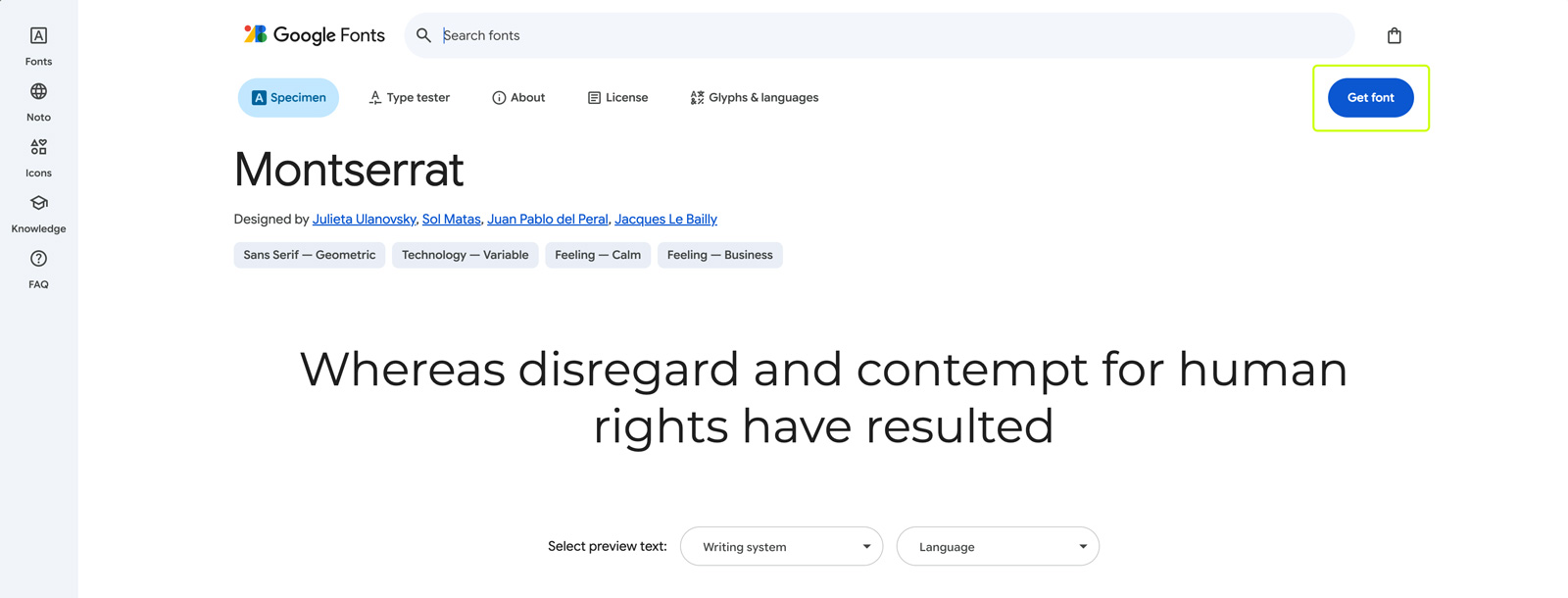
Head to Google Fonts and find the typeface you want to use.
Psst.. Still deciding which font fits your brand vibe? 👀
If you want something that looks high-end without overthinking it, check out my post on the best fonts for photographers — it’s packed with the most aesthetic, elegant font pairings. Spoiler: Number 12 is my favorite 🤫
Click Get Font, and in your cart choose Download (either the icon or the “Download all” button).
This gives you a ZIP file — extract it somewhere easy to find.
(How to unzip: Mac users → double-click. Windows users → right-click → “Extract All.”)
When you open the folder, you may see different files and subfolders depending on the font:
- a variable folder
- a static folder
- multiple weights
- multiple formats
Important:
👉 Showit does NOT support variable fonts.
So always open the static folder.
Inside, you’ll see something like this:
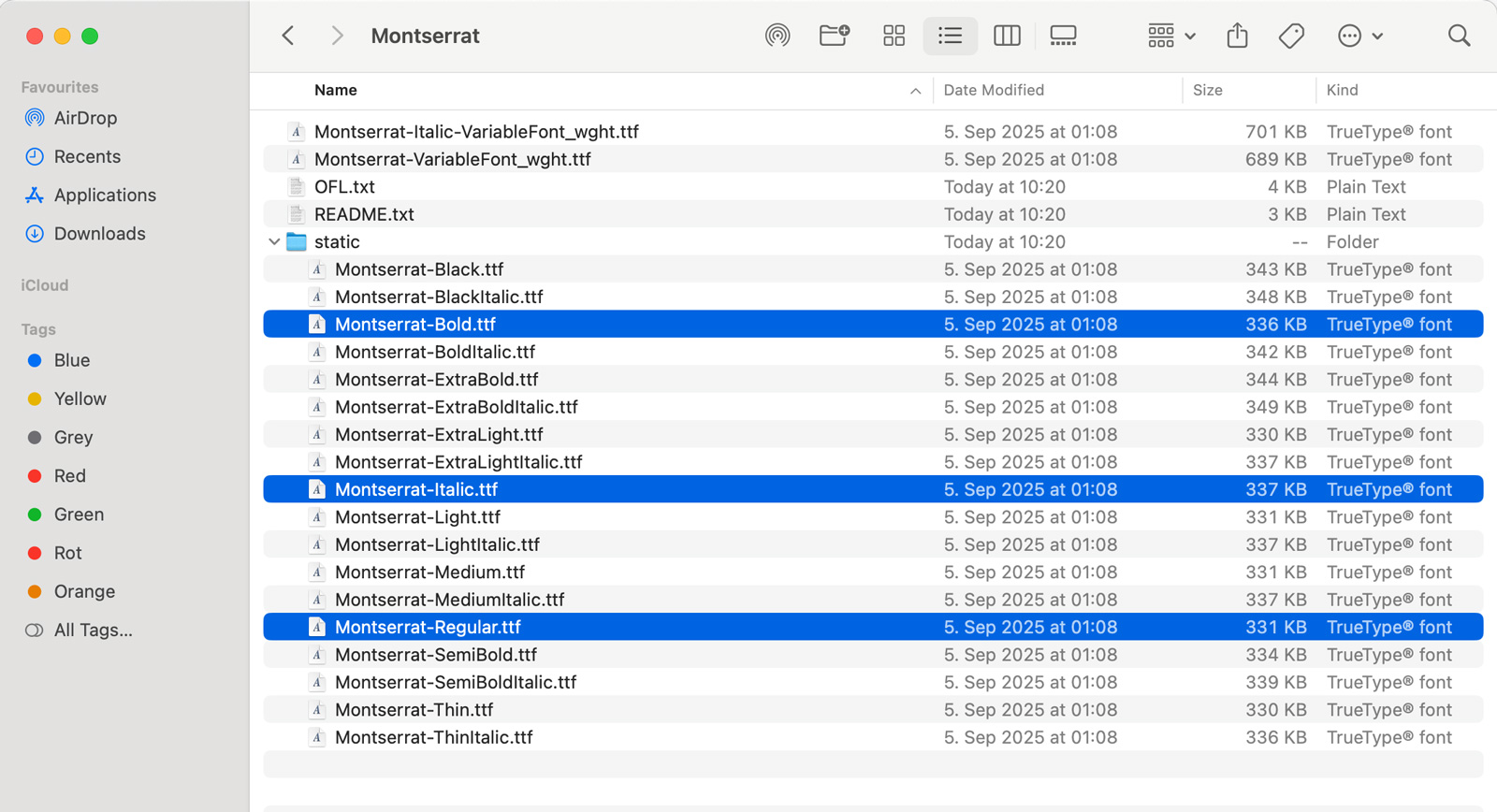
You do not need all of them.
To keep your site loading fast, only grab the styles you actually use — usually:
- Regular (400)
- Bold (700)
These are the files we’ll convert and upload to Showit in the next steps.
✔️ TL;DR
Open the static folder, pick the font weights you actually use, and ignore the variable fonts.
Keep those files handy — we’ll convert them next.
Step 2 — Convert Your Fonts to .woff (Required for Showit)
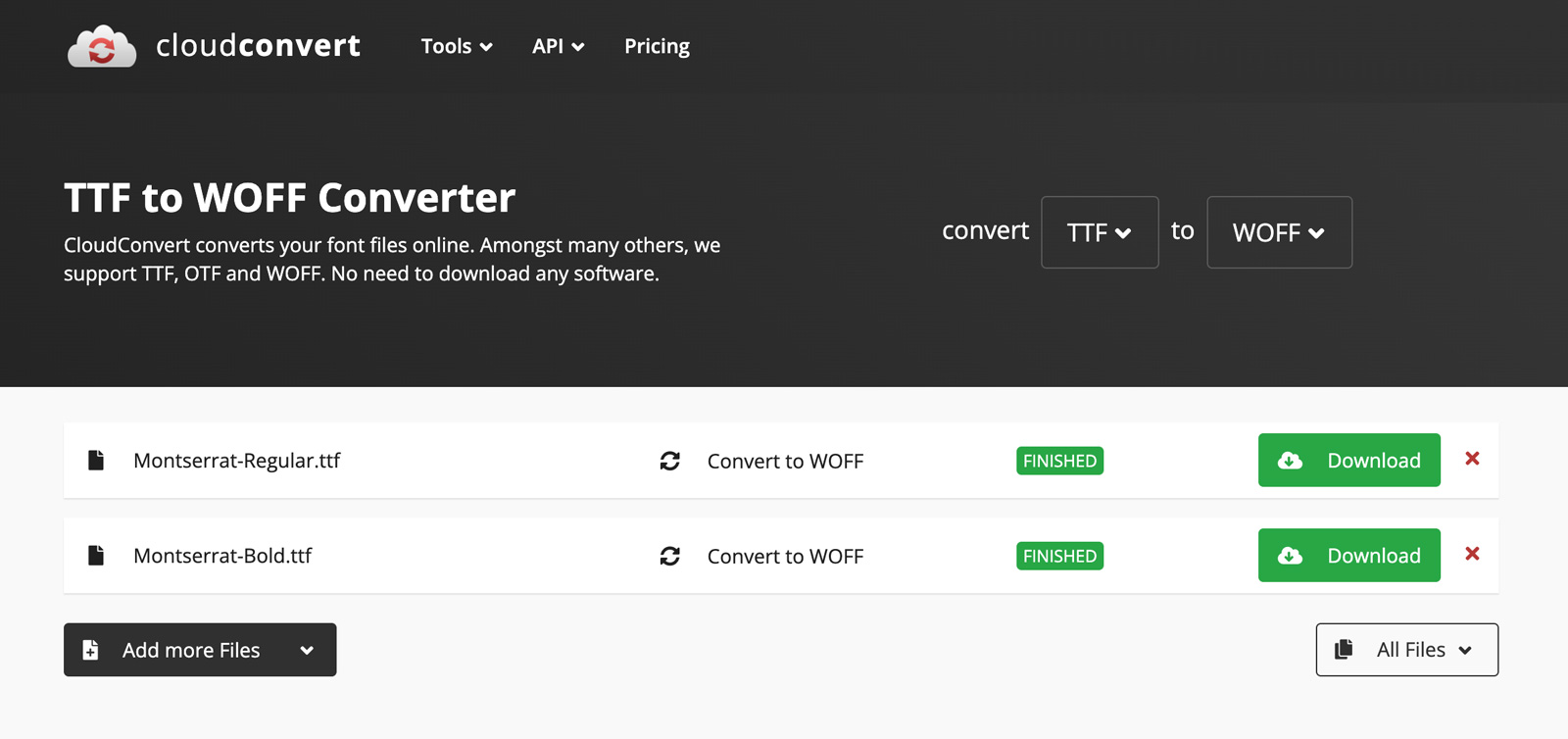
Showit doesn’t support .ttf or variable font files — it needs .woff, which is a modern, lightweight web format that loads fast and keeps things clean.
Luckily, converting is super quick and easy:
Here’s how to do it:
- Go to CloudConvert or FontSquirrel
- Upload the static .ttf font files you selected in Step 1
- In the “Convert to” dropdown, choose .woff
- Hit Convert
- Download your new .woff files
A couple of tips:
- Convert only the weights you actually use (e.g., Regular + Bold)
- Keep the filenames simple so Showit doesn’t choke on weird characters
- Store everything in one folder so you don’t lose track (trust me, it happens 😂)
Once you have your .woff files, you’re ready to upload them to Showit.
Step 3 — Upload Your Fonts to Showit
Now that your fonts are converted to .woff, it’s time to get them into Showit.
This part is very straightforward — you’re basically just uploading files to your media library.
Here’s how:
- Open Showit and go to your Media Library
- Create a new folder, name it fonts
- Drag + drop your .woff files in
Your result:
Your font is now stored directly on your Showit site → GDPR-proof + ready for embedding.
Up next: adding the font to your site.
Step 4 — Add the Google Font to Your Showit Site
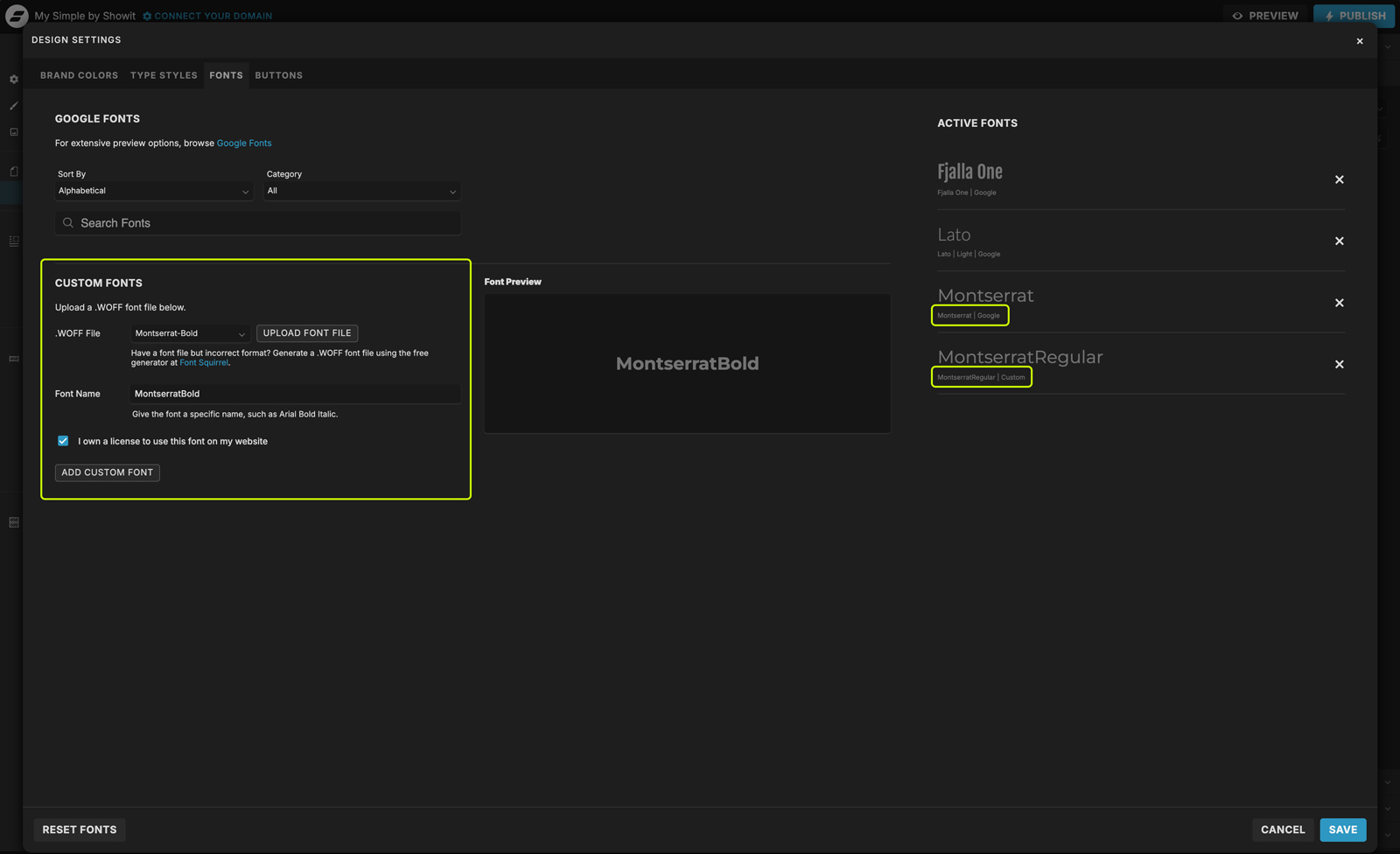
Now that your font files are uploaded to Showit, it’s time to actually activate them so you can use them throughout your design.
Here’s how:
- Open Showit and go to Design Settings
- Click on the Fonts tab
- Under Custom Fonts, click the dropdown and select the font file you uploaded
→ Showit will automatically pull in the .woff file from your Media Library
→ Adjust the font name if you’d like (this is what shows in the Text Style panel) - Click Add Custom Font
→ You’ll now see the font appear on the right-hand list - Repeat the process for every style you want to use (e.g., Regular + Bold)
- Click SAVE in the bottom-right corner
How to Make Sure Your Font Is Actually Stored Locally
In the sidebar where your fonts are listed, you’ll see a small label beneath each font name:
Google → the font is not stored locally
Custom → the font is stored locally (this is what you want!)
If the label says Google, double-check that you selected the .woff file from your Media Library and not the Google-hosted version.
Step 5 — Apply Your Font in Your Type Styles
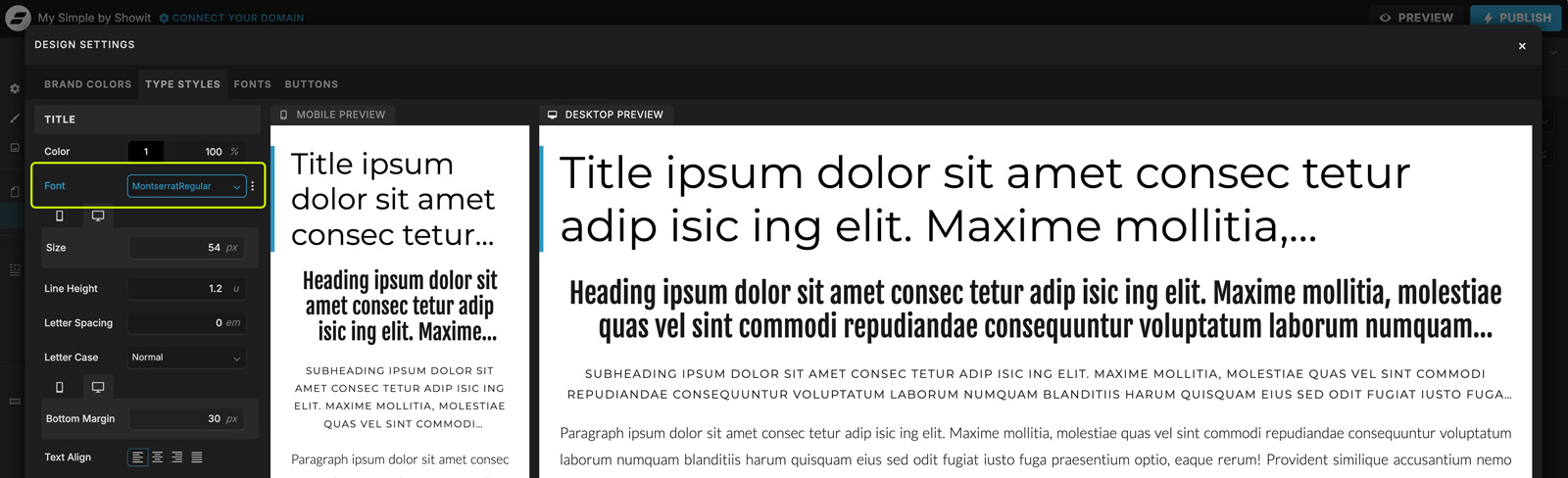
Now that your fonts are officially added to Showit and activated, you can start using them in your site design.
Here’s how to set them as your default styles:
- Go to Design Settings
- Open the Type Styles tab
- Choose a style (e.g., Paragraph, Heading 1, Heading 2…)
- Under Font, select the custom font you just added
- Repeat this for each text style you want to update (H1, H2, body text, buttons…
- 6. Hit SAVE
Once your Text Styles are updated, Showit will automatically use your custom fonts across your entire site wherever those styles are applied.
Step 6 — Add a Tiny Bit of CSS for Bold + Italic Styles (Optional)
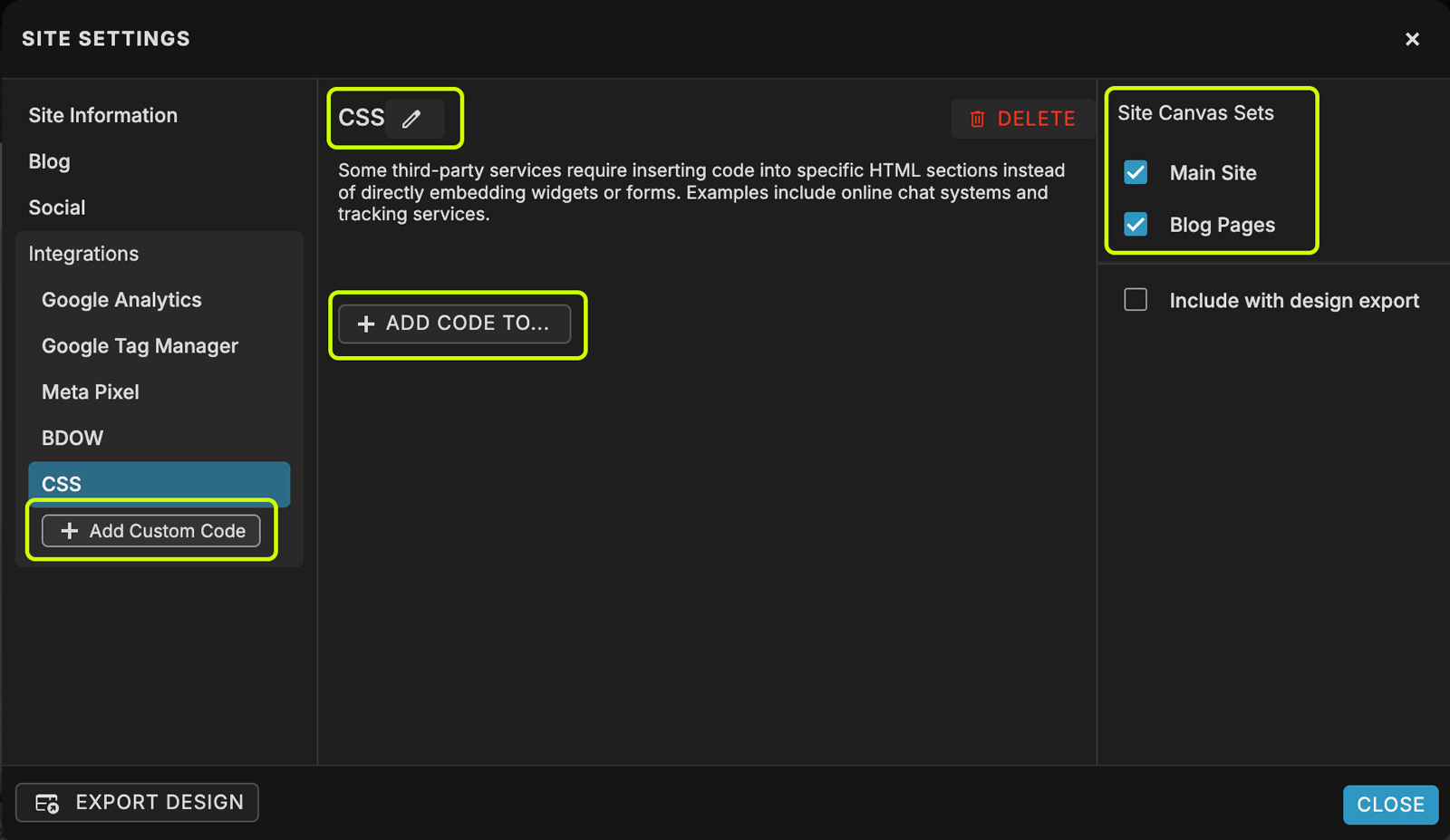
If you uploaded more than one style of the same font (e.g., Regular + Bold or Regular + Italic), Showit needs a little help understanding which file should be used when you apply bold or italic text.
Don’t worry — this is truly a one-minute copy/paste job.
Here’s how to do it:
- Go to your Site Settings in Showit
- Under Integrations, click + Add Custom Code (skip this if you already have one set up)
- Name your integration something like Custom CSS, CSS, or Custom Styles
- Click + Add Code to… → choose Add CSS to the Head
- Make sure the integration applies to all Site Canvas Sets (check the boxes on the right)
- Paste this code — and update the font names + URLs with your own:
@font-face {
font-family: 'YourFontName';
src: url('URL-TO-YOUR-REGULAR-FONT.woff') format('woff');
font-weight: 400;
font-style: normal;
}

@font-face {
font-family: 'YourFontName';
src: url('URL-TO-YOUR-BOLD-FONT.woff') format('woff');
font-weight: 700;
font-style: normal;
}

@font-face {
font-family: 'YourFontName';
src: url('URL-TO-YOUR-ITALIC-FONT.woff') format('woff');
font-weight: 400;
font-style: italic;
}
How to find your font file URLs:
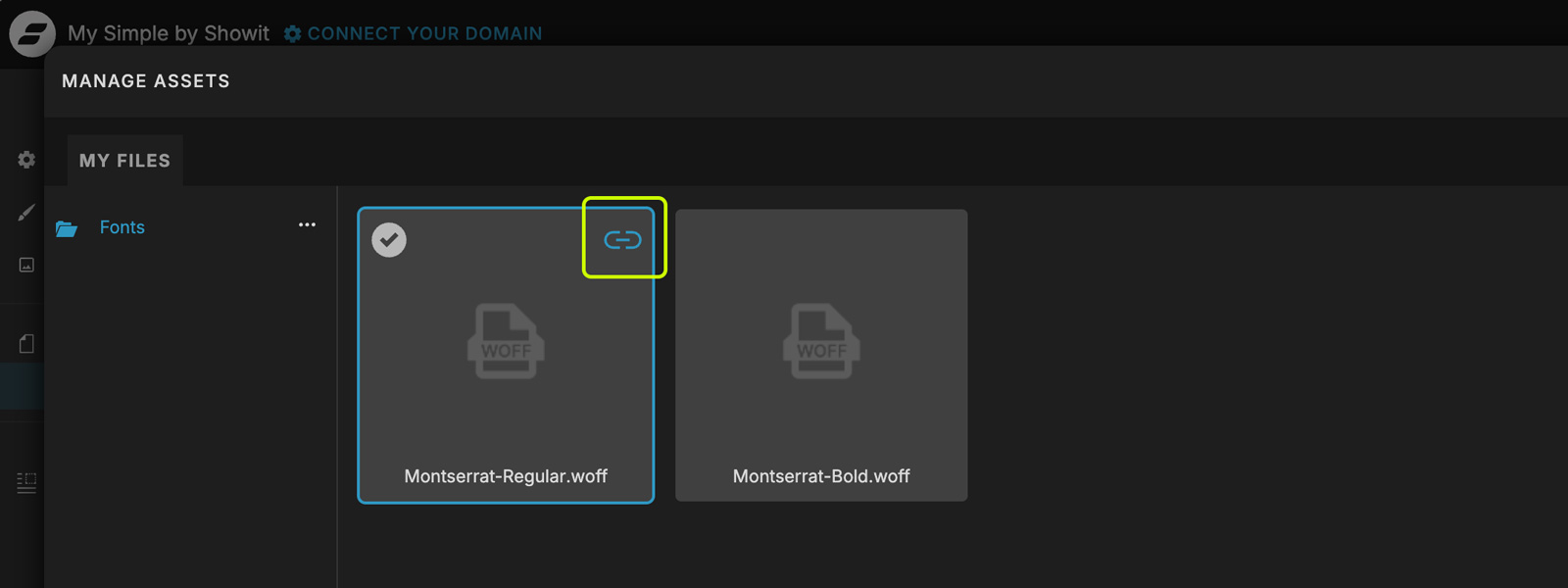
- Go to your Media Library
- Hover over your font file
- Click the little link icon in the top-right corner
- This copies the URL to your clipboard
- Go back to your code snippet → replace the URL inside the parentheses (Paste with ⌘V on Mac / Ctrl+V on Windows)
What each line means (super quick):
- font-family: the internal name you set in Showit
- src: the file URL of your uploaded .woff font
- font-weight:
- 400 = regular
- 500–600 = medium
- 700 = bold
- font-style: normal or italic
Once this is in place, whenever you press B for bold or I for italic inside Showit, the correct local font file will load — GDPR-friendly and exactly how it’s supposed to look.
Heads up:
Sometimes the bold/italic style won’t visually update inside the Showit builder (Showit can be stubborn 🙃), but don’t panic — it will show correctly on your published site.
Quick Tip
If you don’t plan to use italic or bold, you can skip this step.
But if your font pairing includes these styles, absolutely add this snippet — it keeps everything crisp, intentional, and consistent.
That’s it! You now know exactly how to host Google Fonts locally on Showit — safely, correctly, and GDPR-friendly.
You’ve just made your Showit site more GDPR-friendly and more professional — and yes, even if it required a tiny copy-and-paste code moment, you handled it like a pro.
From here on out, your fonts will load directly from your own site, giving you full control over performance, privacy, and design consistency.
If you ever switch fonts or update your branding, you can repeat these steps in just a few minutes.
Happy designing! 🍸
Written by Kim Preis

Published on December 5, 2025

